
Sourcing items for your auction can feel like a full-time job. Emails, phone calls, follow-ups, chasing photos, writing descriptions and managing fulfillment can take hours, days or even weeks.
GalaBid's new item donation feature takes a big piece of that job off your plate. Your supporters can now donate items directly into your campaign. They fill in the item details, add photos, vouchers or certificates. You simply review, edit and publish when you are ready.
Why it helps your auction
Spend less time on admin
Donors write their own descriptions, set out their own redemption details, and supply their own photos. Your job shifts from data entry to review, which frees up countless hours of your valuable time.
Give your community another way to give
Not every supporter can donate money or bid in an auction, but many can contribute an item. Item donations let them easily submit all the information that will best showcase their item to your bidders.
Crowdsource unique items
Your supporters know people and places you don’t. With a shareable donation link, they can pass it on to their own networks and extend your prize outreach well beyond your own contacts.
How it works
1. Turn on item donations
Go to Setup > Menu > Add Menu Item, choose Donate Item as the section type, and give it a label. Once saved, "Donate Item" appears in the left-hand menu of your campaign so supporters can find it easily.
Prefer to send it directly? Go to Items > Donated Items, copy the donate item link, and share it with supporters by email or social media.
2. Supporters submit their item
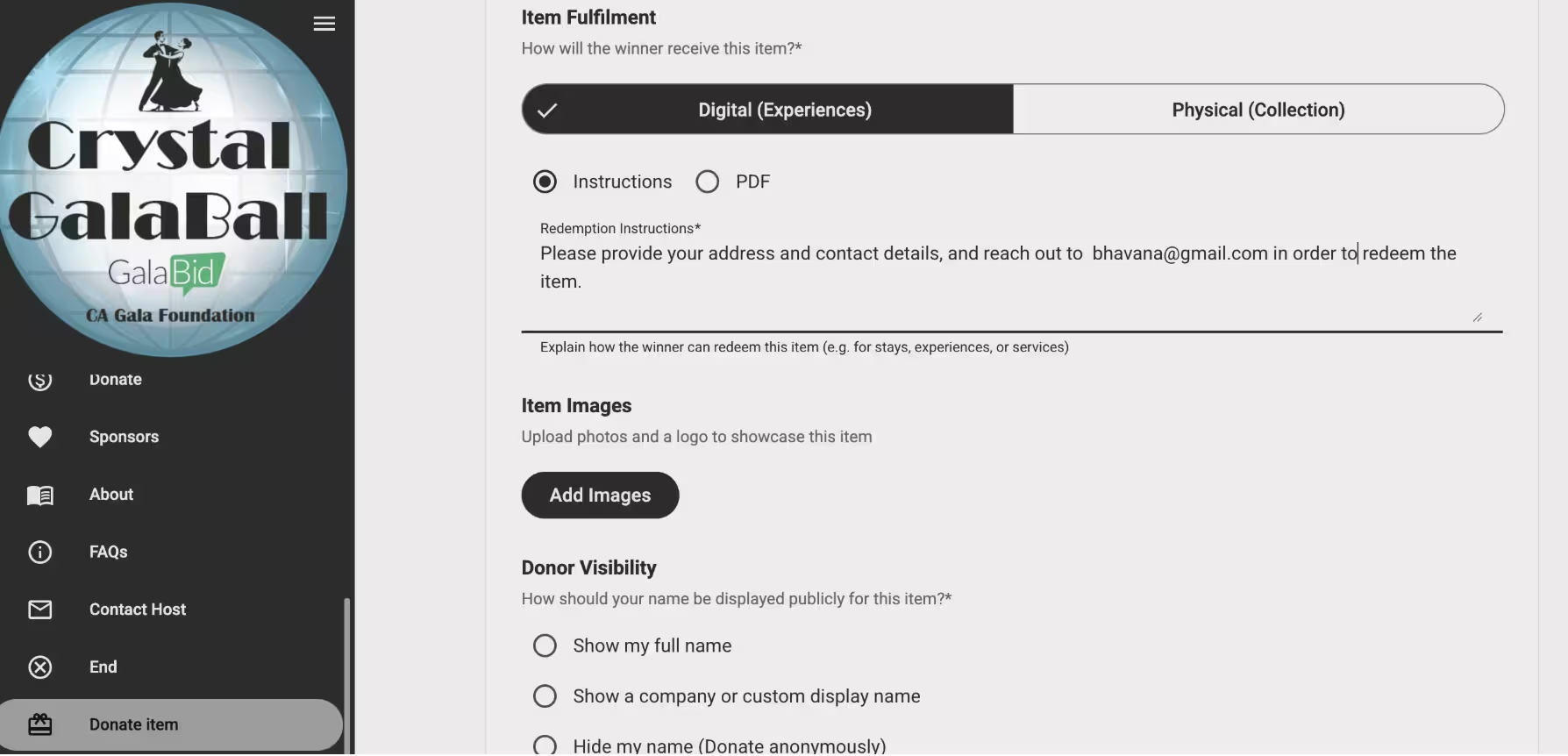
Supporters click "Donate an item" to open the form. If they aren't registered for your campaign yet, they'll be asked to register first. On the form, they can add:
- The item name and the number of units available
- An estimated value for the item
- A description, plus any terms and conditions
- Redemption details, either as a PDF voucher or as instructions for collecting a physical item or redeeming a digital one
- Images of the item
The PDF voucher option is especially handy. The winner gets everything they need to claim their prize, and the donor doesn't have to arrange a handover with you in the middle.
Donors also choose whether their name is shown publicly on the item. Then they hit submit.
3. Review and edit in your dashboard
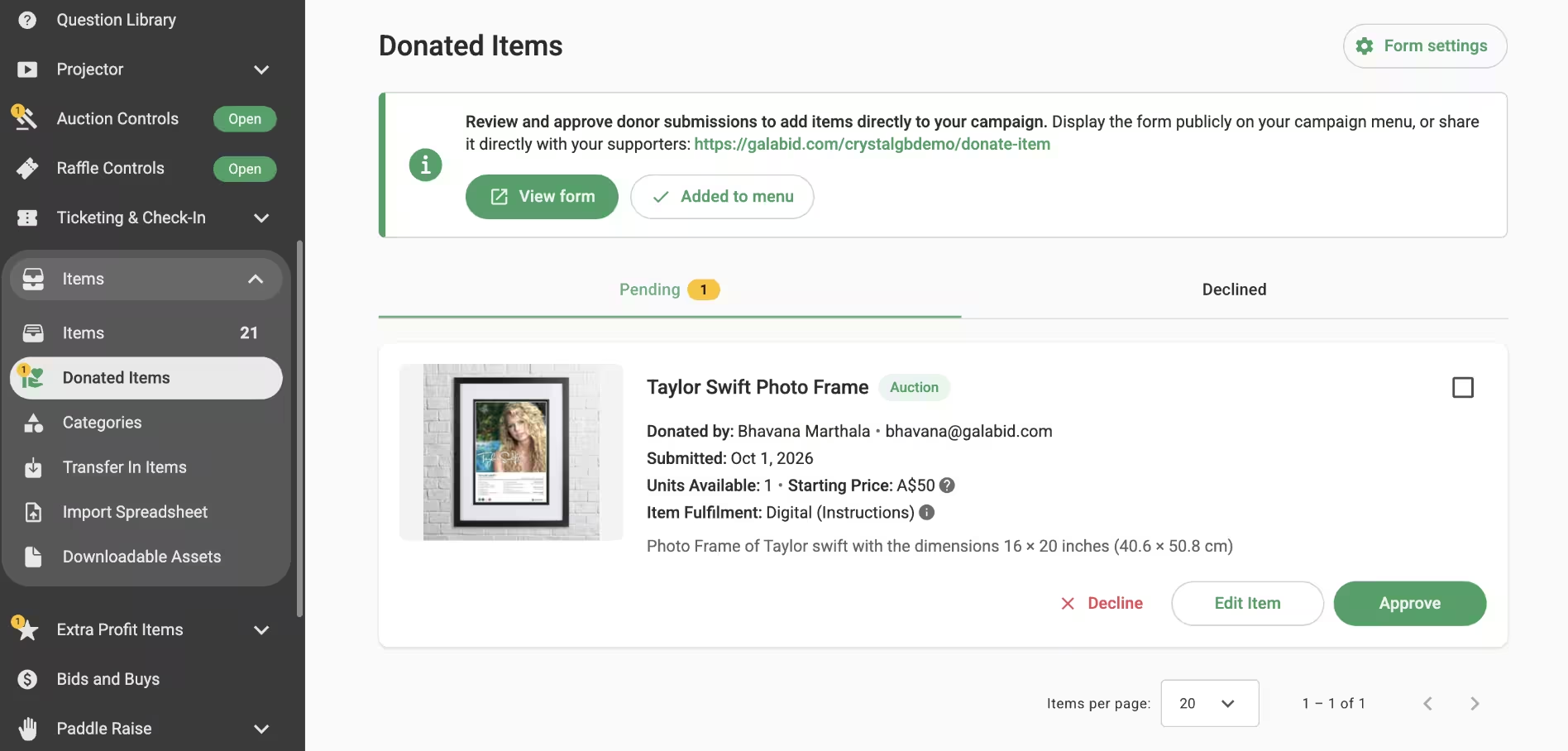
New submissions land in the Pending queue under Items > Donated Items, and you get a notification when one arrives. Open any submission to check the details. If something needs tidying up, click Edit before you make a decision.
4. Approve or decline
Approve or decline each item with one click. Either way, you can add a personal message so the donor knows the outcome. A quick thank you here goes a long way.
Once you approve an item, it's live in your campaign right away, unless you choose to hide it, just like any other item.
5. Use in your live, silent auction or raffle
Approved items sit in your campaign's item list, where you manage them like any other item. You choose the starting bid, and you can save the item as a live auction item or use it as a raffle prize instead.
Tips for getting more item donations
- Add the donate item link to your procurement emails and donation request letters, so donors can submit right away.
- Tell supporters what you're looking for. A short list of item ideas helps people picture what they could give.
- Ask donors for clear photos, and encourage a PDF voucher where it suits the item. Strong listings attract more bids, and clear redemption details mean fewer questions after the auction closes.
- Check your Pending queue regularly so approved items reach your catalog while interest is high.
For more ideas, read our guide to sourcing auction items for your next fundraising event.
Turn on supporter item donations today
Give your community an easy way to donate items to your silent auction or or raffle campaign today. For a full walkthrough, see our help article on accepting items donated by supporters. Need a hand getting set up? Our team is available on live chat 7 days a week.